Integrating IEPs into Google Classroom



CONTEXT
What is Google Classroom?
Over 7 million students in the U.S. receive special education services under IEPs, yet Google Classroom, used by 150M+ users globally, offers zero native support for managing them. Educators are forced to stitch together PDFs, spreadsheets, and memory to serve their most vulnerable students. This project explores how IEP accommodations can be embedded directly into classroom workflows, enabling educators to deliver more consistent, personalized learning experiences without added complexity.
ROLE
Product Designer
TEAM
2 UX Researchers
1 Product Designer
TIMELINE
January 2025 - May 2025
TOOLS
Figma
Canva
Google Workspace
THE PROBLEM
The core tension
IEP compliance is legally mandated, but Google Classroom, teachers' primary workspace, treats it as someone else's problem. The result is a hidden burden on educators: manual cross-referencing between PDFs and assignments, accommodation gaps that put students and districts at legal risk, and no feedback loop to know whether interventions are actually working.
USER RESEARCH
How are educators currently managing students with IEPs?
To avoid designing for stated preferences over real behavior, we combined in-context observation at P.S. 217 Roosevelt Island with interviews across four general education teachers. We supplemented with behavioral pattern analysis from r/teachers and r/specialed (n=200+ relevant threads), focusing specifically on moments of workaround and failure, not satisfaction.
Across our research, three consistent challenges emerged:
Many IEPs are overly complex or poorly structured, making it hard for teachers to quickly extract actionable accommodations.

Educators rely on manual or disconnected tools, leading to inconsistent tracking and increased administrative burden.
Teachers manage a mix of IEP and non-IEP students, often collaborating with rotating staff, which complicates consistency in accommodations.
The insight that reframed everything
During our site visit, we watched a teacher pause mid-lesson to flip through a printed IEP binder to recall a student's extended time accommodation during an assignment handout. The IEP wasn't the problem. The distance between the IEP and the moment of action was.
This single observation reframed our HMW from "how do we make IEPs more accessible?" to "how do we collapse the distance between IEP knowledge and classroom action?"
How do we collapse the distance between IEP knowledge and classroom action?
Design Principle: Zero new surfaces
Early concepts included a standalone IEP dashboard, a logical solution that I deliberately rejected. A separate tool would require teachers to context-switch, exactly the behavior causing the current breakdown. Instead, I mapped the three highest-friction moments in a teacher's existing Google Classroom workflow and embedded IEP support at each one:
Scope Definition
While some IEP accommodations require in-person support, I focused on opportunities that could be meaningfully improved within a digital platform like Google Classroom.
IDEATION
Exploring key features to address the complexities of IEP integration
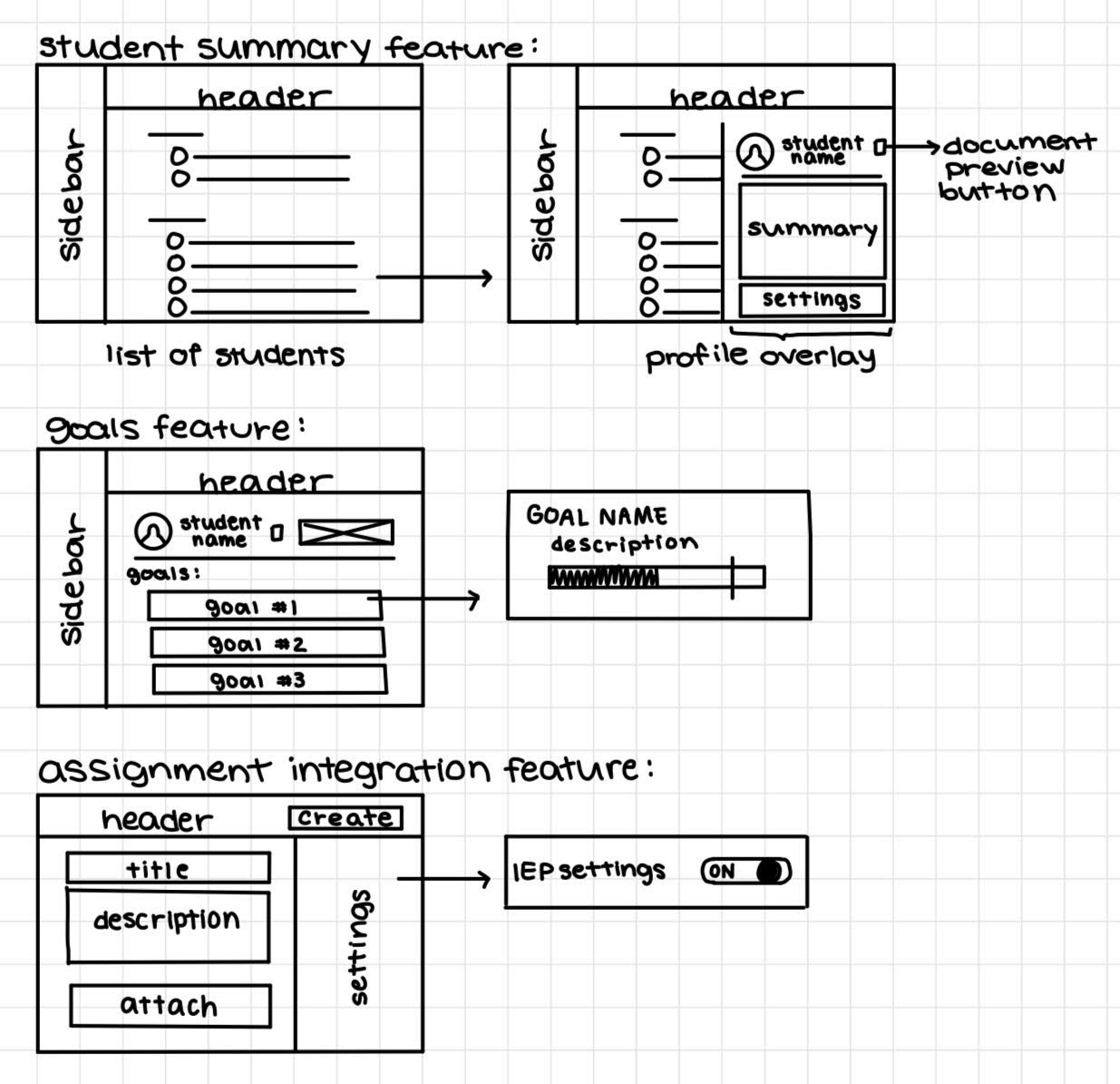
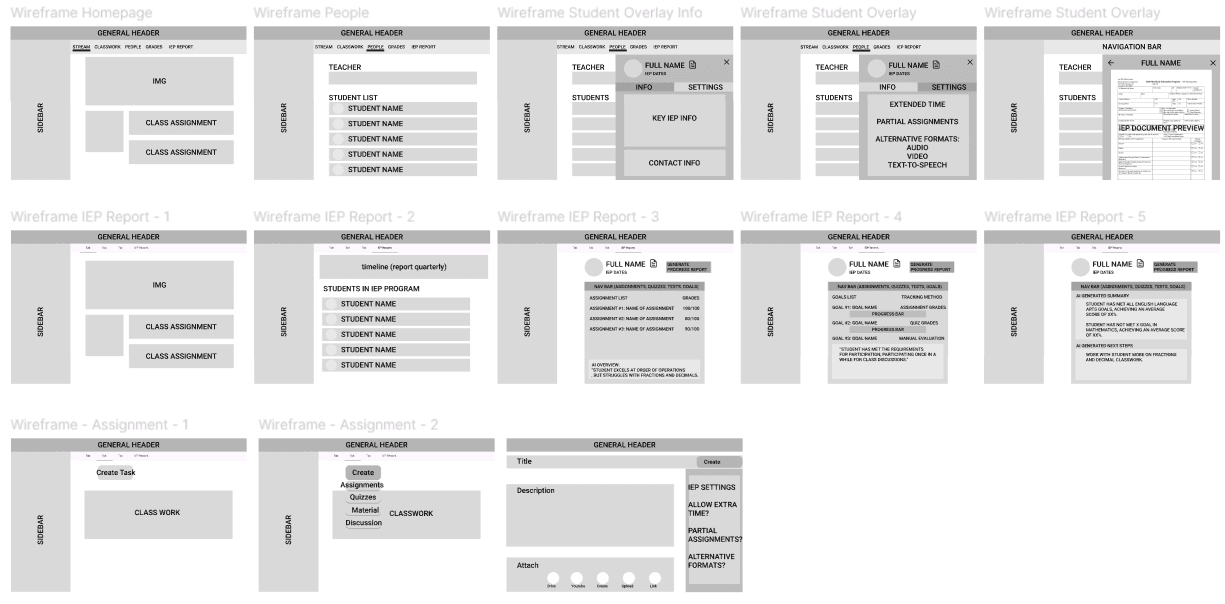
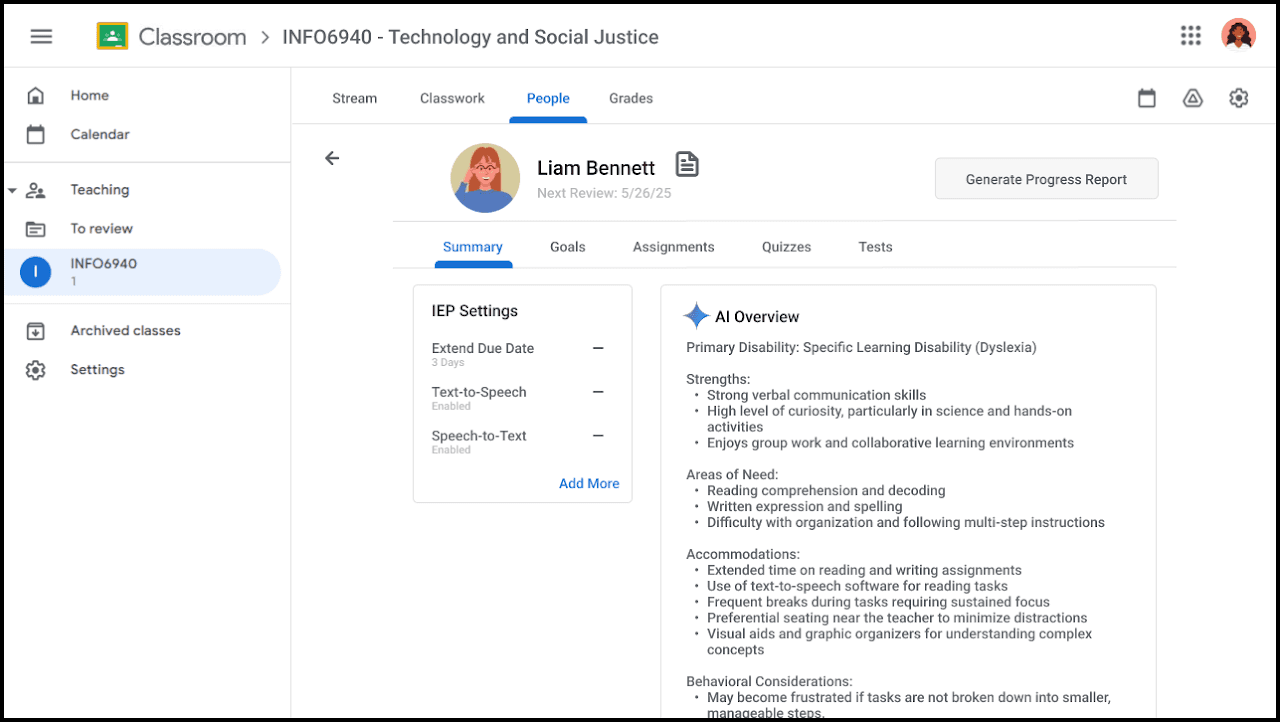
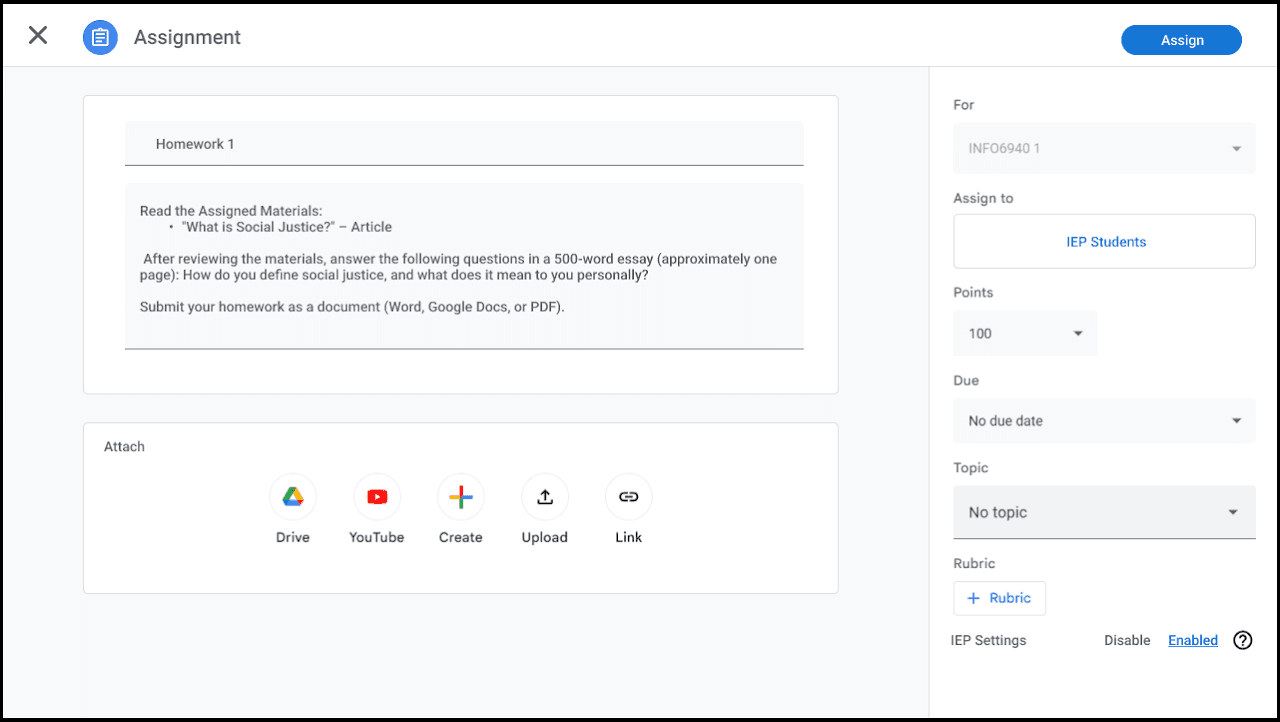
I created low-fidelity sketches and medium-fidelity wireframes to consolidate our potential ideas and envision the core features of the application. These included the Student Summary Page, a Goals Page, and an Assignment Integration Page.
To ensure cohesion, I followed existing design patterns from Google Classroom, aligning with its UI structure and interaction models.
ITERATIONS
From Fragmentation → Centralization
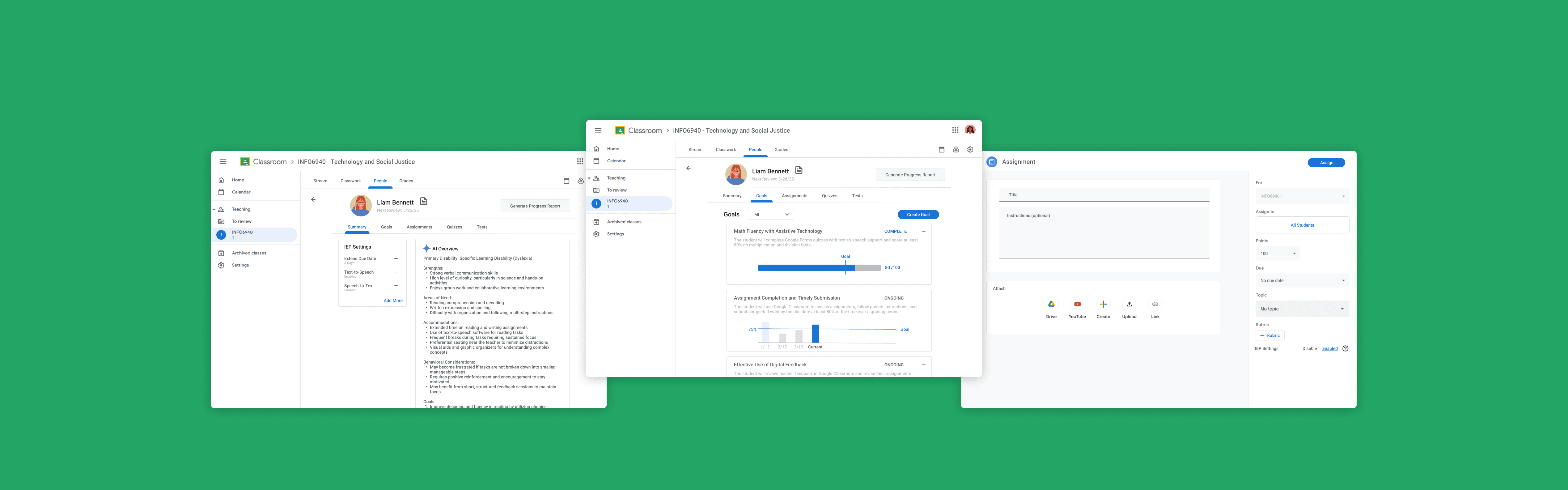
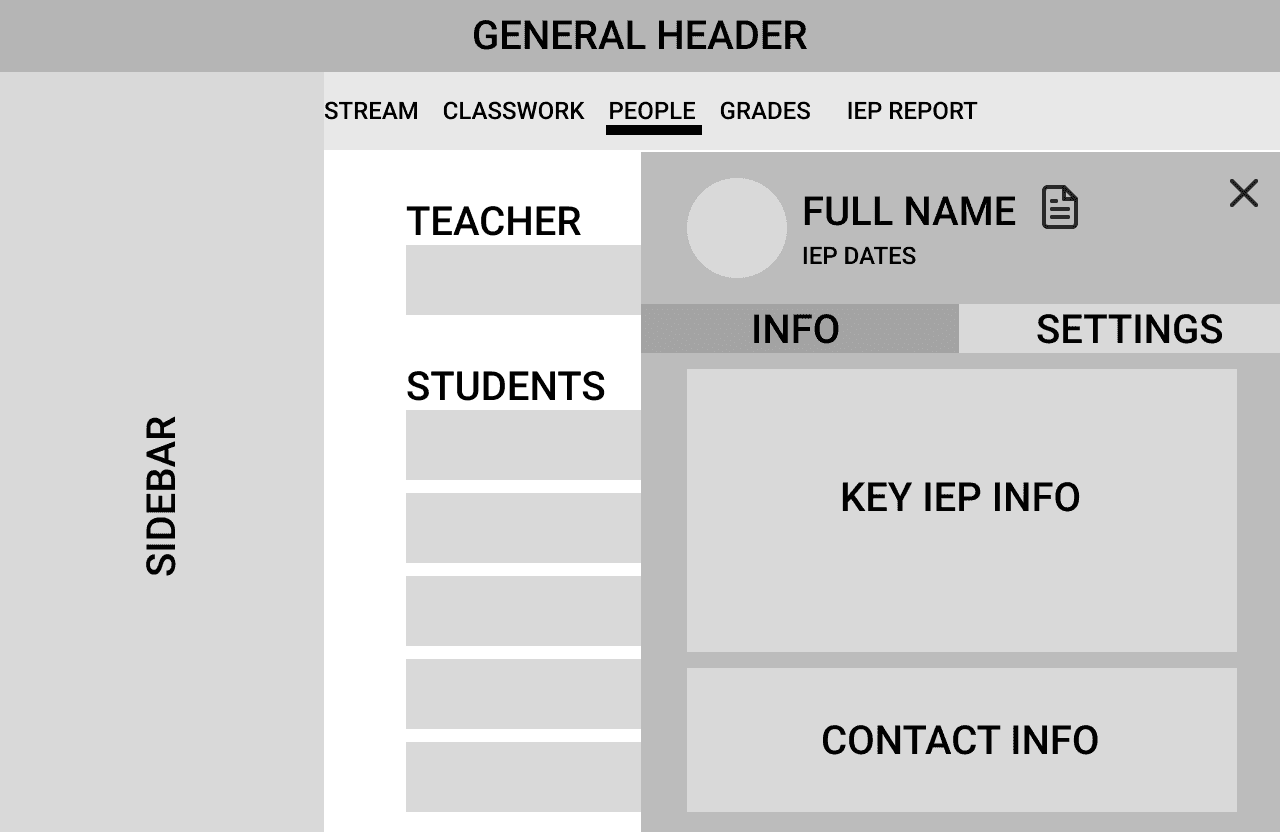
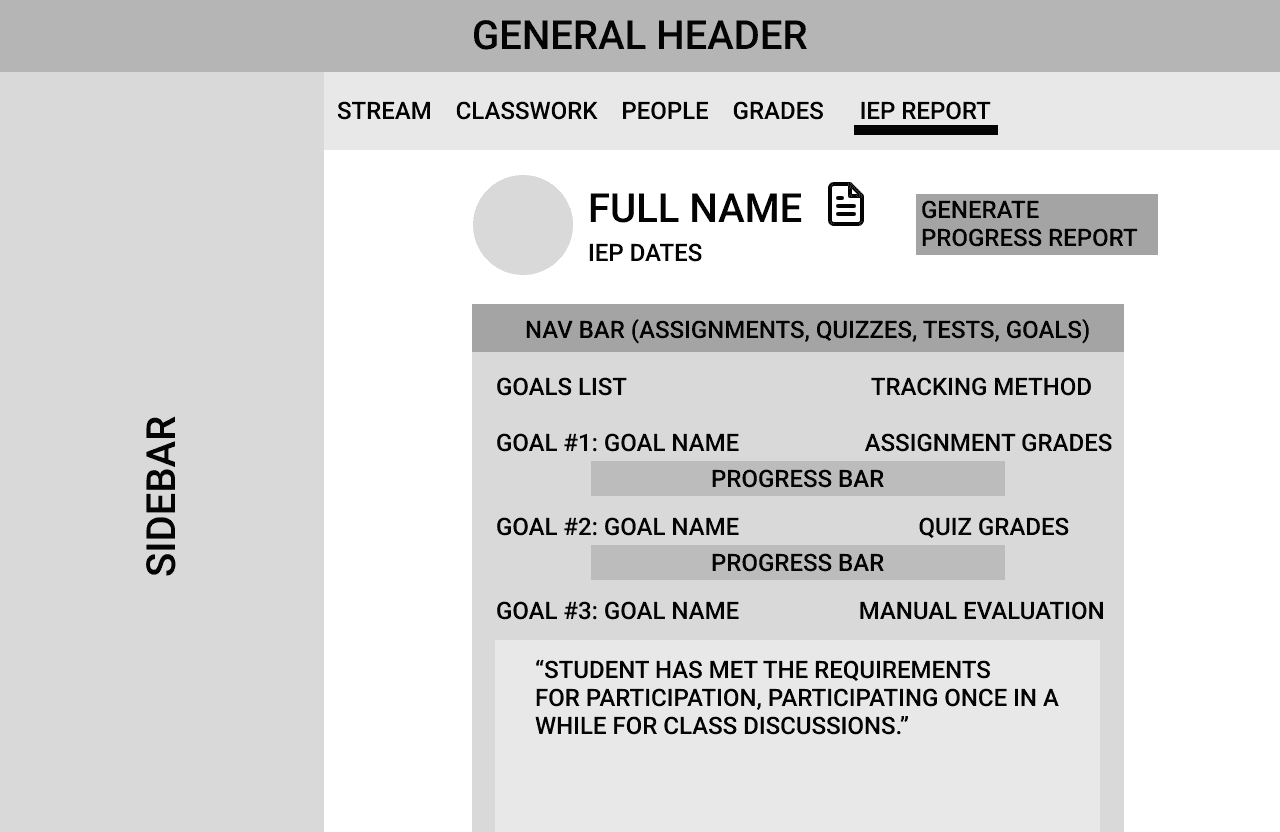
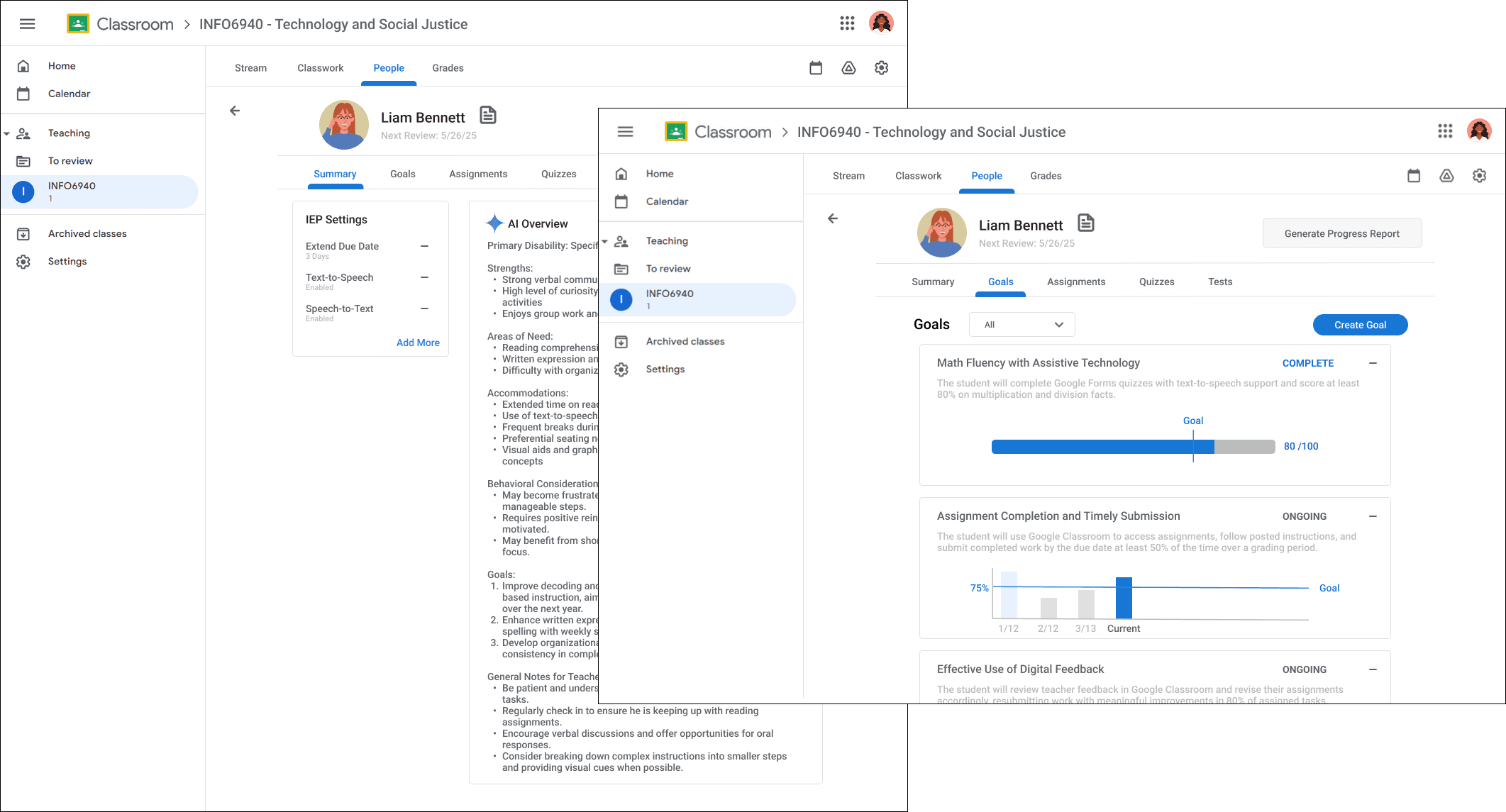
Moving from wireframes to prototypes, the overall format stayed consistent, but a key change was the placement of IEP information. In the initial approach, IEP features were distributed across multiple sections of the platform: summaries were placed under “People,” goals were located under “Grades,” and additional data existed in a separate tab. This fragmented structure increased cognitive load and made it harder for educators to quickly access the information they needed.
To address this, I made a final design decision to consolidate all IEP-related information into a unified student profile that could be accessed from multiple entry points. This shift reduced navigation complexity, better aligned with teachers’ mental model of thinking student-first rather than feature-first, and improved efficiency when switching between different classroom contexts.
Goals Iterations
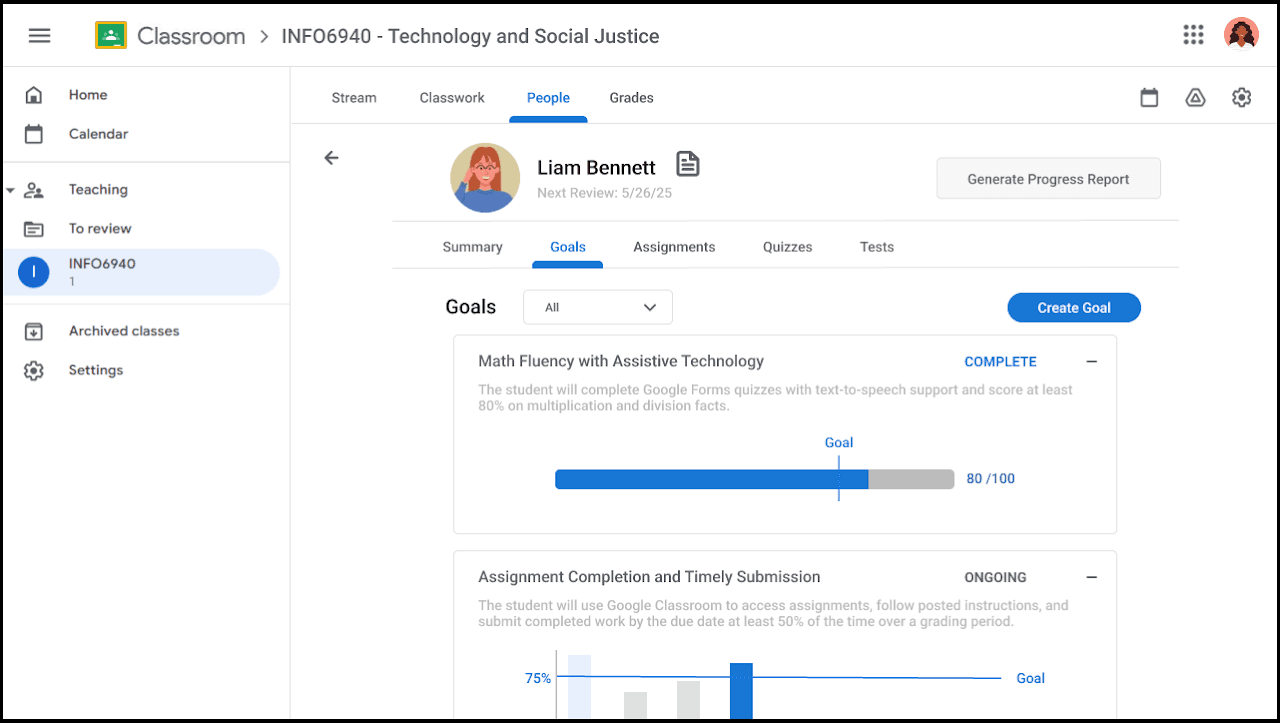
When iterating on how I wanted the goals to be displayed, I focused on making the design easy to understand and intuitive to grasp at a glance. I explored multiple layouts to improve clarity and scannability:
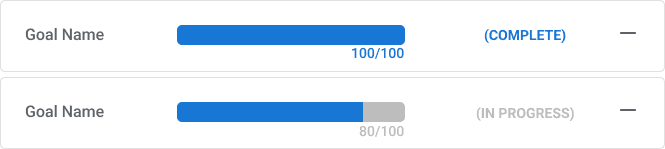
Option 1: Minimal View
✅
Easy to scan fast
❌
Can't see the specifics of the goal since theres no description.
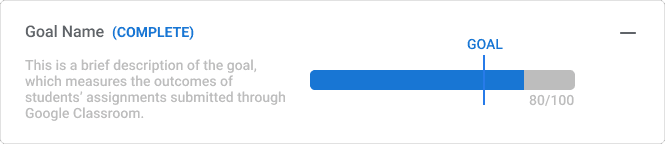
Option 2: Side-by-Side
✅
Description provides context for what the progress bar represents.
❌
Description feels cluttered and hard to read.
❌
Progress bar is horizontally shrunk to have space for description.
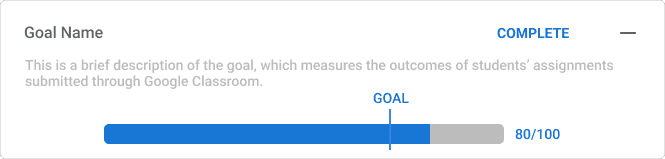
Option 3: Context-First Layout
✅
Clear hierarchy, as users will read the context first before interpreting the bar.
✅
Cleaner visual flow.
✅
No space competition
Option 3 was validated not just visually, but behaviorally. In the side-by-side layout (Option 2), users will read the progress bar before the description, then had to re-read to understand what it measured. Option 3 enforces the correct reading order: context before interpretation. This matters in high-stakes environments where a misread progress bar could mean a teacher incorrectly believes a student has met a goal they haven't.
Assignments Iteration
I also explored ways to apply accommodations during assignment creation:
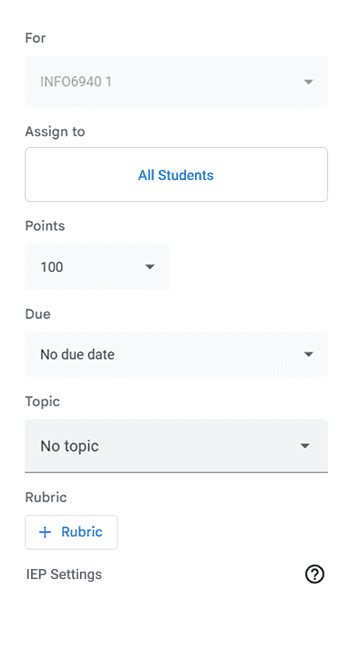
Option 1: Check-box
✅
Simple Toggle
⚠️
It takes up minimal space until there are more options
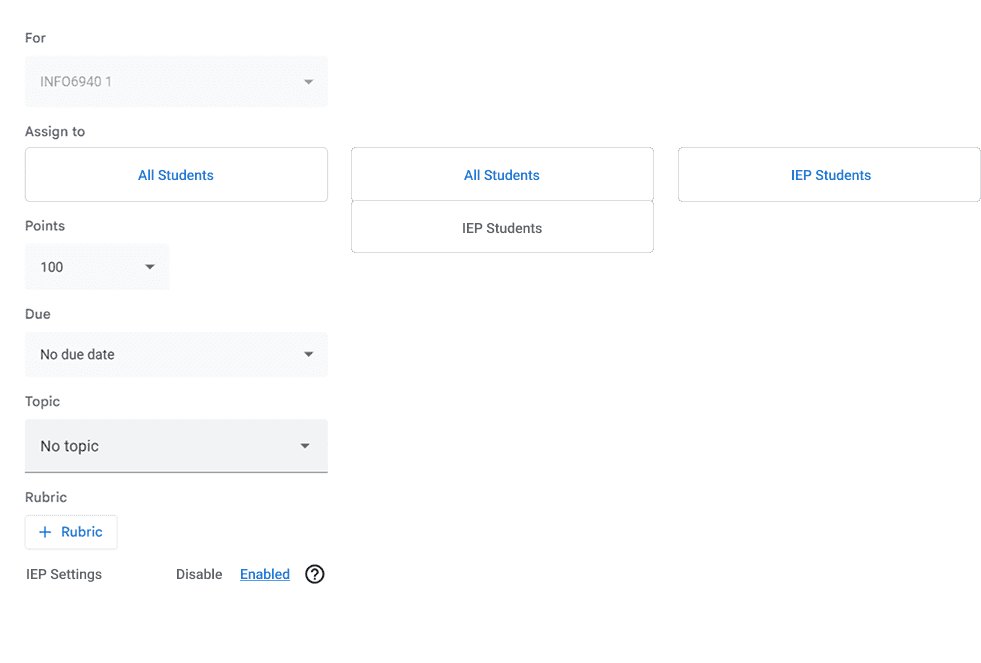
Option 2: Collapsible Button
✅
The user can see all the available specialized settings at a glance once they expand the section, which could be more intuitive than a single toggle.
✅
More scalable
❌
It adds an extra click for the user to get to the settings.
Option 2 was selected because it allows me to present detailed IEP settings without cluttering the main assignment creation page. It’s a more scalable solution that supports multiple types of settings, offering greater clarity and control than a simple checkbox.
FINAL DESIGNS
IEP Overview Summaries

Goals Tracking and Progress

Assignment Integration

CONCLUSION & TAKEAWAYS
Turning Research into Practical, Impactful Design
This project shifted my approach from designing standalone features to thinking in systems and workflows. I learned that effective solutions are not about adding more tools, but about embedding support into existing behaviors in a way that reduces friction and cognitive load. It also reinforced the importance of: designing within real constraints, prioritizing based on user behavior, and making intentional tradeoffs between simplicity and flexibility.
Next Steps
I'd prototype an AI-assisted IEP summarization layer, not to replace human judgment, but to reduce the time a special ed coordinator spends translating a 25-page document into a 5-bullet teacher brief. This sits at the intersection of Workspace AI investment and special education equity, two areas where Google has both capability and incentive.